AI Image Creator Tool: The Ultimate Guide to MidJourney
How to Begin Using Midjourney AI Art Creator on Discord
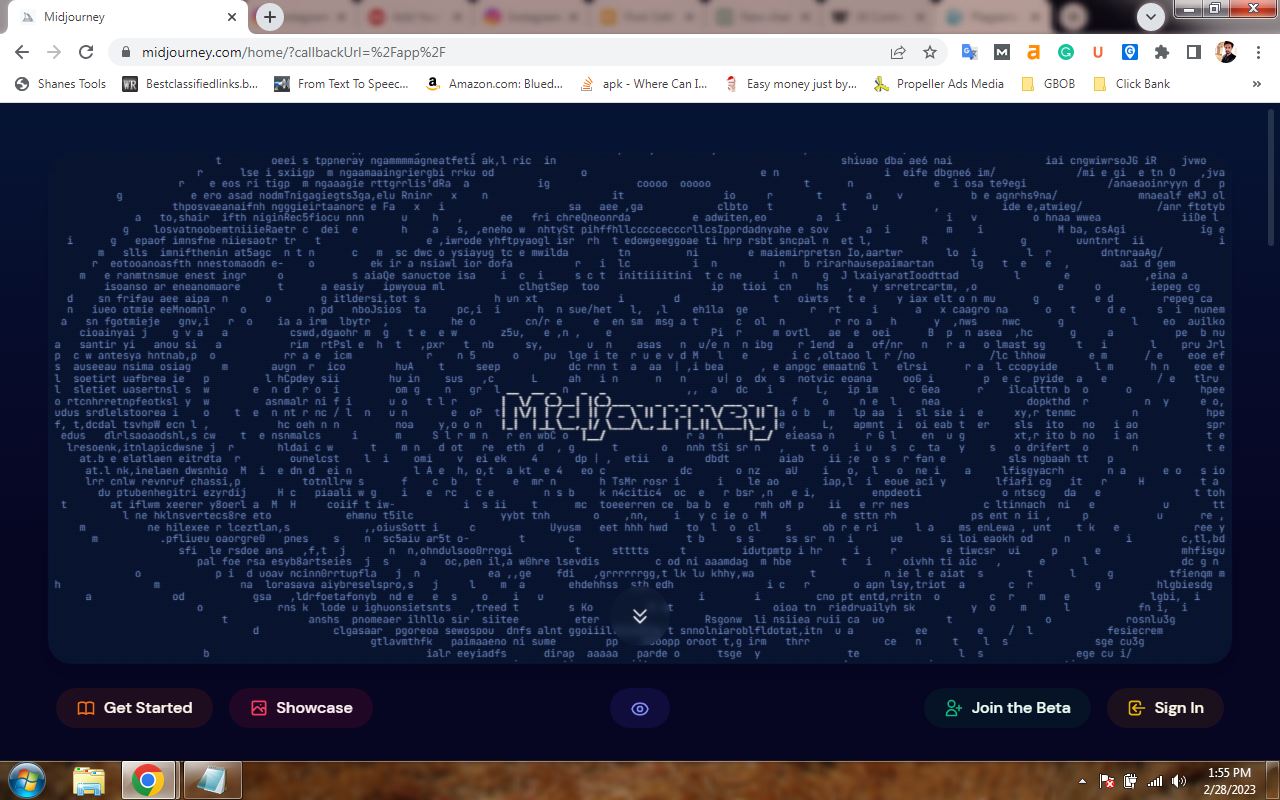
Have you ever dreamed of creating stunning digital art utilizing innovative AI-powered techniques, even if you are inexperienced and lack the requisite skills? Midjourney is here to assist you in making this a reality, allowing you to produce visually pleasing digital artwork in no time. With Midjourney, the possibilities are endless. In this guide, we will provide you with step-by-step instructions on how to utilize Midjourney to create visually stunning AI art.
Step 1: Establish a Discord Account
Midjourney is exclusively available on Discord, necessitating a Discord account to use. If you have not already done so, create a free account at Discord.com.
Step 2: Join the Midjourney Beta
To utilize Midjourney, go to the Midjourney website and select "Join the beta." This will direct you to a Discord invitation, and you will be sent to the Midjourney Discord server.
Step 3: Accept the Invitation
Accept the invitation to join the Midjourney server and click "Continue to Discord."
Step 4: Choose the Midjourney Icon
When you join the midjourney server, you will see the ship-like Midjourney icon in the left menu. Click on the icon to access Midjourney.
Step 5: Enter the Newcomer Rooms
In Midjourney, navigate to the Newcomer rooms to start your AI art journey. There are numerous newcomer rooms available, each with a distinct number, such as "newbies-108." You can choose any of them to begin with.
Step 6: Start Creating AI Art
Before you create your first artwork, bear in mind that your free trial has limited prompt options, and you can only generate around 25 free images. To create the most amazing AI art, be as descriptive as possible when describing your image. Type "/help" to browse a list of helpful tips.
When you're ready to begin, type "/imagine" in the Discord chat for your newcomer room. This will generate a prompt field where you can enter your image description. Remember to follow the terms of conduct and keep your prompts clean.
Once you've finished inputting your prompt, hit Enter to send it.
Step 7: Wait for the AI to Generate Your Images
Midjourney's AI will generate multiple versions of your image based on your prompt description. Wait a moment for the images to be created.
Step 8: Select Your Favorite Image
After the AI generates your images, choose your favorite by clicking on the U and V buttons labeled 1 through 4. The U button will increase the image size, producing a more defined version, while the V button will create a new image based on the chosen image. You can also use the refresh button to create a new set of images.
Step 9: Customize Your Image
If you select to increase the image size, you will be provided with several customization options. Select "Make variations" to produce various variations of the image, or "Upscale to the max before you download" to maximize the resolution. You can also select "Light upscale redo" to modify the image further.
Step 10: Save and Download Your Image
After you've customized your image to your satisfaction, select the Envelope emoji and add it to your chat to DM the image to yourself. You can save and download the image whenever you like.
Step 11: Subscribe to Midjourney
If you intend to use Midjourney frequently, you may use any bot channel on the Midjourney Discord server and type "/subscribe" to subscribe.

Comments
Post a Comment